

Knowing how to make Google Docs available offline is an absolute game-changer for road trips, shitty airport WiFi, and even voluntarily entering airplane mode so you can focus. As a website copywriter, I do the bulk of my work in Google Docs (and HIGHLY recommend you write all emails and website copy in Google Docs before transferring them to your site/email builder, so you always have a reference that autosaves), and this is partly how I’m planning to make the most out of travel time for some upcoming trips.
How To Make Google Docs Available Offline
You’ll need:
- An Internet connection (just to set it up)
- Google Chrome
- A Google Workspace/Drive account
- The Docs you want to make available offline
Please note: this will give you offline access to specific Google Docs when you’re not connected to the Internet, but you DO need to be online to set this up.
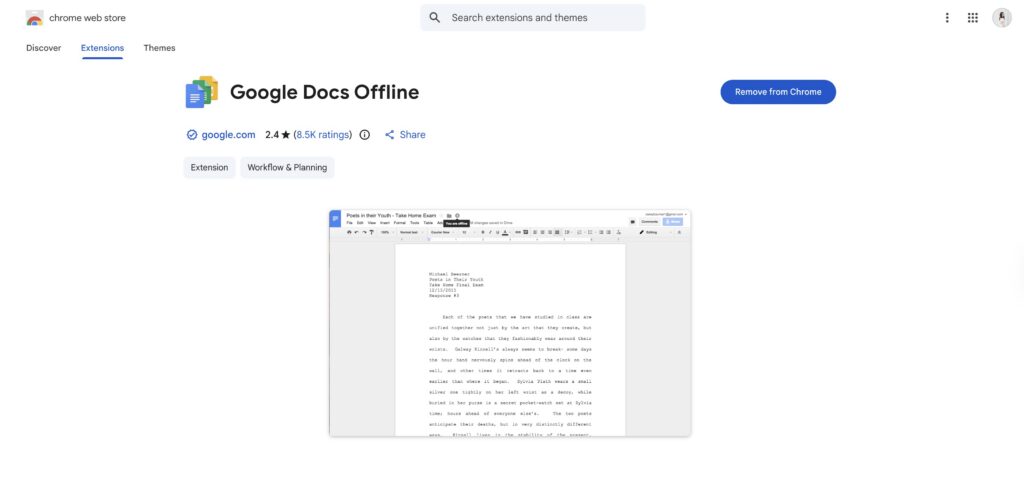
Step 1: Install the Google Docs Offline Chrome extension.
Click here to install the Google Docs Offline Chrome extension. You don’t need to pin it to your Chrome or make it easily available – you’ll finish the rest of the process inside of a Google Doc.
Step 2: Open The Google Doc You Want To Update Offline
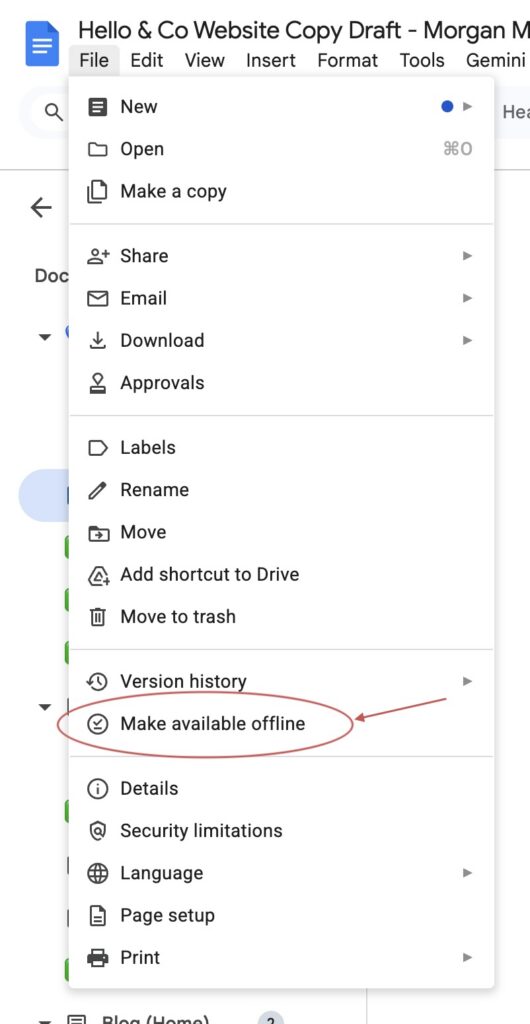
Open the Google Doc you want to make available offline, then click “File → Make Available Offline.”
In my opinion, this is the PERFECT way to draft your own website copy — get everything you need into one doc, then disconnect so you can focus. It’s part of why all of my website copy templates are delivered through Google Docs!
Does Google Docs Offline work with Google Sheets, Slides, etc.?
Yep! After you follow the first step (installing the Google Docs Offline plugin, you should be able to do it with any Google file by opening it and clicking “File → Make Available Offline.”
Rinse & repeat with any other Google Docs (or Google Workspace files) you want to make available while you’re unplugged, and happy offline(ish) working!