If you have a Showit website and want better SEO, you need to take 10 minutes to submit your Showit sitemap to Google. Period.
It’s super easy, and it gives you a direct line to Google to tell it to come crawl (and rank!) your website.
And I literally don’t have a longer introduction than that, because if you care about your SEO – you need to do it! No excuses!
What Is A Sitemap?
Think of a sitemap as your website’s blueprint – the map that lays out all of your pages and how they connect (including ones that aren’t in your main navigation or linked to).
It’s what helps search engines (like Google) crawl, understand, and index your content, ensuring the right pages show up in search results.
TL;DR: A sitemap makes it easier for Google to recognize which pages matter most – and you can find and submit your Showit sitemap to Google in just a few minutes, nudging it to come read (and hopefully, rank) your website.
How To Submit Your Showit Sitemap To Google
If you’re starting to get stressed out by the word “sitemap” and you’re panicking that you’re not techy enough for this, STOP! I promise: if you can copy/paste, you can submit your sitemap – and your SEO will be better for it.
There are only three steps to submitting your Showit sitemap:
- Set up a Google Search Console account and claim your domain.
- Find your auto-generated Showit sitemap.
- Share it with Google via Google Search Console.
Step 1: Set Up Google Search Console
Google Search Console is the (free!) tool you’ll use to submit your Showit sitemap directly to Google.
How to set up Google Search Console:
- Click here to log into Google Search Console or create your account (it’ll link to your other Google software accounts/your Google workspace/Gmail).
- Because GSC will show you information that only the owner of a website should be able to access, you need to do a one-time verification to confirm that you own your website – follow these steps.
>> PS – there are setup tutorials inside Search Party, my SEO mini-workshop with Mckayla of Comma Mama Co.!
Is Google Analytics the Same as Google Search Console?
Nope! Google Analytics (GA) and Google Search Console (GSC) serve two different purposes—and if you’re serious about your website’s SEO, you’ll want both.
- Google Analytics tracks who’s visiting your site, how they found you, and what they’re doing once they get there. It’s focused on user behavior, like page views, bounce rates, and conversion tracking.
- Google Search Console focuses on how Google sees your site, giving you insights into search performance, indexing issues, and technical SEO details like sitemaps.
Think of it this way: GA helps you understand your visitors, while GSC helps you understand Google. And when it comes to getting your site ranked, GSC is where you’ll submit your Showit sitemap and monitor your site’s presence in search results.
Step 2: How To Find The Sitemap For Your Showit Website
Most website builders, like Showit and Squarespace, automatically create a sitemap and a URL for it – you just need to know where to look.
For your Showit pages, your sitemap can be found at: yourwebsite.com/siteinfo.xml.
If you have a Showit blog, I also recommend submitting a second sitemap (generated by the WordPress side of your website) so that Google knows to index your WordPress pages.
Want more info on how Showit & WordPress work together for blogging? You’ll want to read this post!
To generate a sitemap for your blog posts:
- Install the Yoast SEO plugin if you haven’t already (there’s a free plan that works on both basic and advanced Showit blogging plans).
- Activate the plugin.
- Your new sitemap can be found at yourwebsite.com/sitemap_index.xml.
Step 3: Submit Your Sitemap To Google
Once you’ve set up your Google Search Console account and found the links to your sitemap, you’ll log into Google Search Console and click “Indexing → Sitemaps.”
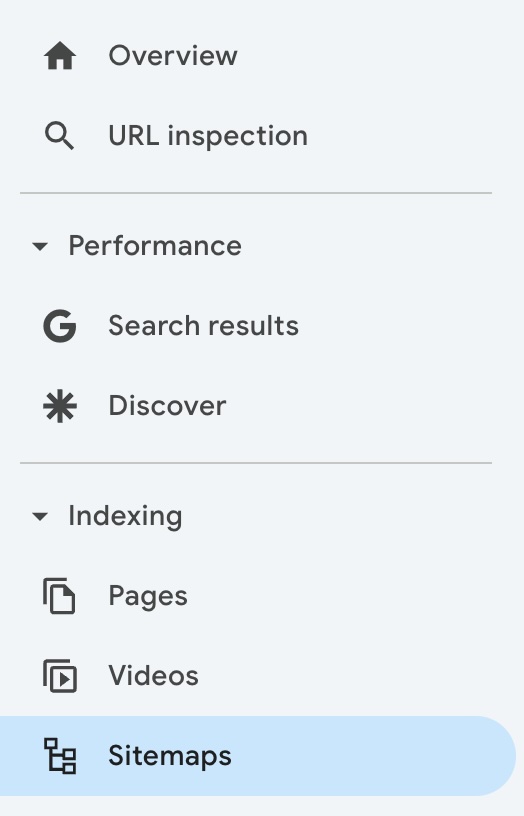
You only need to copy/paste the second part of the URL for your sitemap(s), since Google now knows you own your domain.
- For your Showit sitemap, add the URL: siteinfo.xml
- If you have a Showit blog, also add the URL: sitemap_index.xml

If the status doesn’t change to “Success,” try again after refreshing the page.
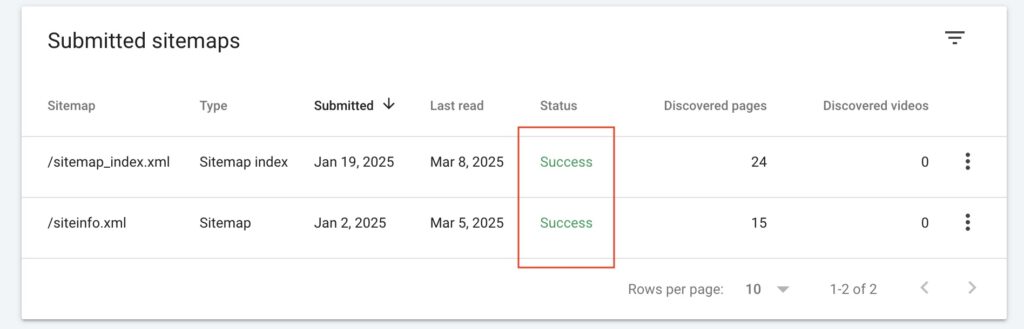
And that’s literally it. You’re done, and you told Google to come read your website! Google will start giving you site data over the next week, and you can use it to see how people are finding your website.
Should I ever submit a new Showit sitemap?
If you make major changes to the structure of your website, ever undergo a rebrand/new website design (or update your website copy), or add a ton of new pages – you can just resubmit your Showit sitemap using the steps above, and Google will crawl your new website.
>> Want help actually choosing keywords and optimizing your site for them before submitting your sitemap? You’ll love Search Party, my mini SEO keyword workshop with Mckayla of Comma Mama Co.! You’ll learn what a keyword is, why you need them, and how to research, pick, and use them to boost your rankings for just $97!
How do I submit new pages in my Showit sitemap?
If you add one new page (including a new blog post) that you’d like Google to crawl, you can paste the URL in the top search bar of Google Search Console (the one that says “Inspect any URL in [yourdomain]”), and request that it be inspected. I like to do this after updating or posting blog posts, so that Google crawls them more quickly.
How do I hide pages on Showit?
To hide a page from Google on Showit, navigate to your page settings → advanced settings → toggle “Ask Google to ignore this page.”
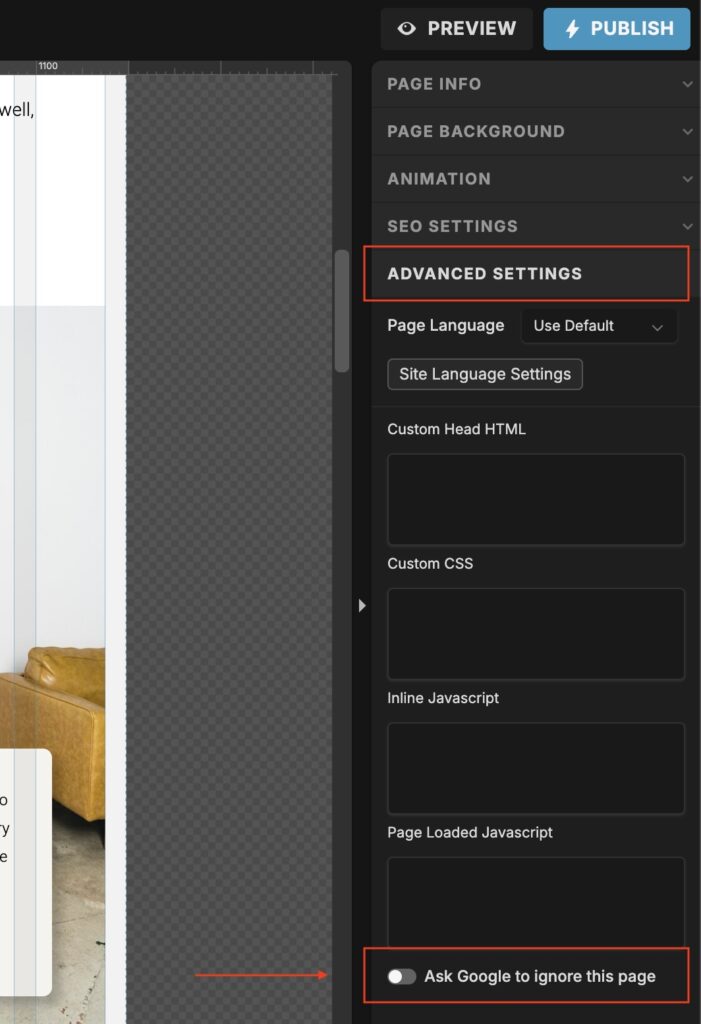
Use this setting for hidden pages that you don’t want or need Google to find, like:
- Your website policies
- Hidden landing pages (example: I hide my client welcome page so people can’t just find it)
Is Showit a good platform for SEO?
Yeah, gurl. SEO is more about the content on your website than your website platform itself – but Showit is a great platform for launching a website that looks good *and* ranks well. More here!
What should I do about Google Search Console errors?
Now that your Google Search Console is set up, you’re inevitably going to get emails about “errors” on your site – and you can ignore *most to all of* them. Here’s what do to with each!
And of course, now that Google knows about your website – you’ll need to make sure the website itself is ranking-worthy.
Here’s how I can help:
>> Trying to do SEO research? Start with this blog post about finding and choosing the right keywords.
>> Already added your keywords and not seeing the results you want? This post is for you!
>> Need help writing your website from scratch? Check out Cook Your Copy, my done-with-you website copywriting experience.